Vedic astrology software · macOS
Jagannatha Hora for Mac
The complete Jagannatha Hora 8.0, packaged as a Mac app. Every chart, dasa, varga and setting works exactly as it does on Windows.
- Version 8.0-mac.1
- 330 MB
- macOS 11 Big Sur or later
- Apple Silicon and Intel
What you get
The whole program
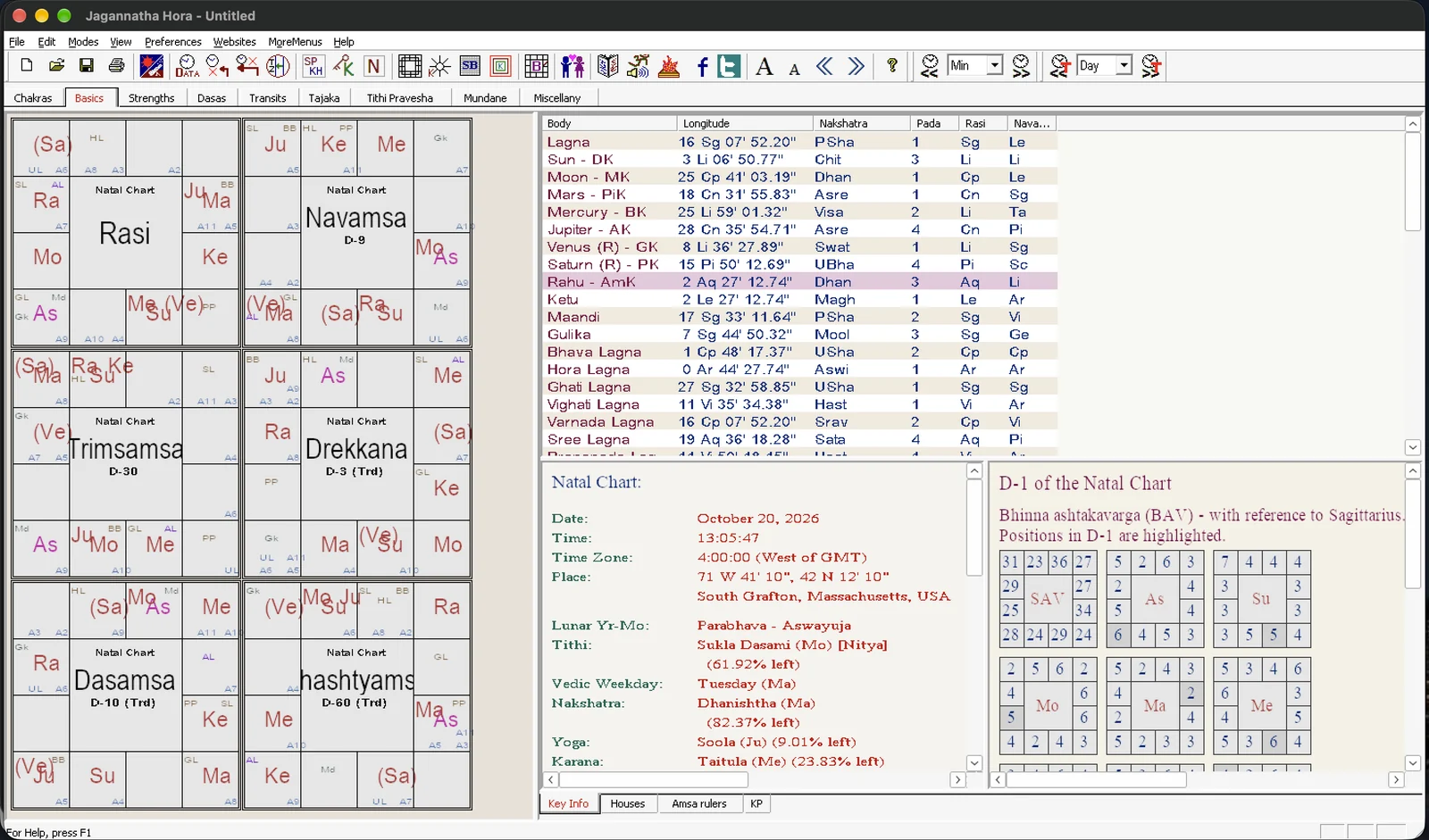
This is Jagannatha Hora 8.0 itself, not a look-alike: divisional charts, dasa systems, ashtakavarga, Tajaka, Tithi Pravesha, transits, panchanga and every preference.
Apple Silicon and Intel
Runs on Apple Silicon (M-series) Macs and on Intel Macs. After the first launch it opens in a couple of seconds.
Nothing else to install
The compatibility layer, fonts and ephemeris files are inside the app. No Wine, Homebrew or CrossOver needed.
Your charts stay on your Mac
No account and no sign-up. Charts are saved wherever you choose, such as your Documents folder.
Install in three steps
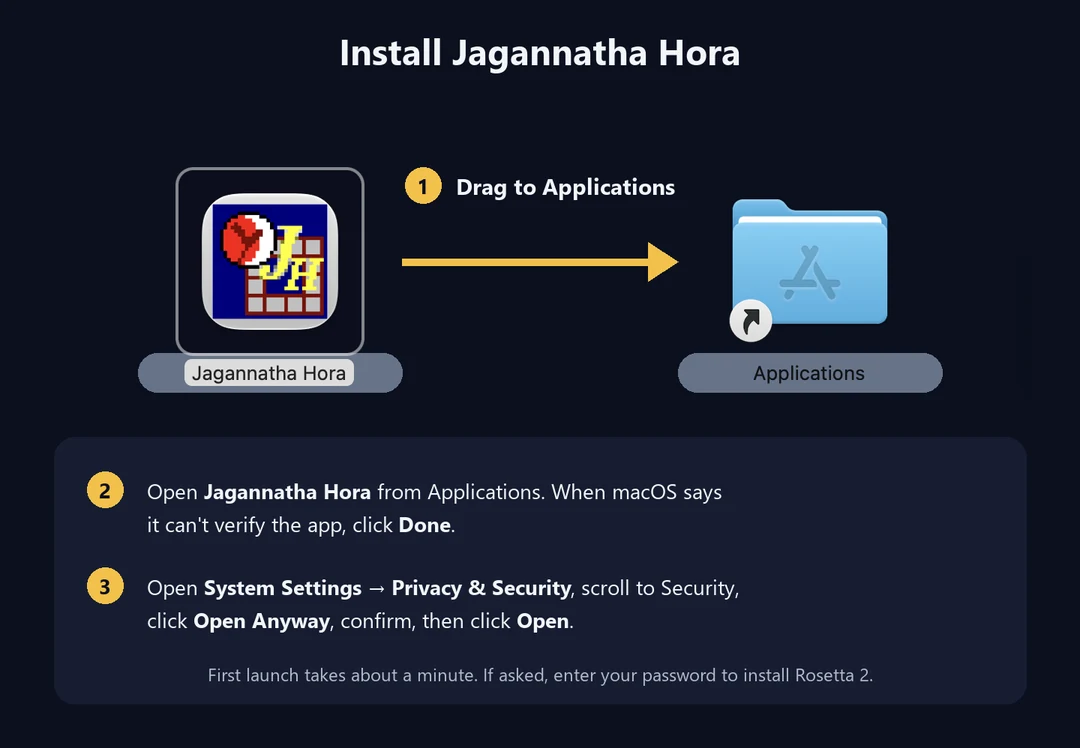
Drag to Applications
Open the downloaded file. In its window, drag Jagannatha Hora onto the Applications folder.
Allow it to open, once
Open the app from Applications. When macOS says it cannot verify the app, click Done. Then open System Settings → Privacy & Security, scroll to Security, click Open Anyway, confirm, and click Open.
First launch
Setup takes about a minute and the app opens by itself. If your Mac asks for your password to install Rosetta 2, enter it. After that it starts in a couple of seconds.
Questions
Is Jagannatha Hora for Mac free?
Yes. Jagannatha Hora is freeware, and this Mac package is free to download.
Why does macOS say it cannot verify the app?
The app is not distributed through Apple’s paid developer programme, so macOS asks you to approve it once. Click Done, then go to System Settings → Privacy & Security and click Open Anyway. You only do this once per Mac.
“Open Anyway” is not shown in Privacy & Security. What now?
The button only appears for about an hour after you try to open the app. Open Jagannatha Hora from Applications again, click Done, and go straight back to Privacy & Security.
What is Rosetta 2 and why is my password needed?
Rosetta 2 is Apple’s translator that lets Apple Silicon Macs run Intel software. If it is missing, the app asks for your password once and installs it from Apple. Intel Macs do not need it.
Where should I save my charts?
In the Save dialog choose My Documents. It is your Mac’s Documents folder, so your charts are easy to find and back up.
How do I remove it?
Move Jagannatha Hora from Applications to the Bin, then delete the folder ~/Library/Application Support/Jagannatha Hora. Charts you saved in Documents are kept.
Ready to install?
- Version 8.0-mac.1
- 330 MB
- macOS 11 Big Sur or later
- Apple Silicon and Intel